EasyClick · iOS Offline / Wi‑Fi
Apple Cluster Wireless Edition — Beginner Install Guide
For first-time offline / wireless users: install step by step — product downloader → offline IPA → trust & keep-alive → activator → scan devices → wireless mirroring.
iOS system versions below 15 are not supported. Use the USB detailed guide instead: iOS USB screen mirroring tutorial.
After install, continue with: Offline activator tutorial · Offline control center & mirroring
Before you start
- A Windows PC (install via the product downloader)
- An iPhone with a USB cable (needed for IPA install and activation)
- i4Tools / AiSi (install IPA and copy BundleId)
- Phone and PC on the same LAN (device scan & wireless mirroring)
- Access to the official download area (offline main IPA)
- iOS system version 15 and later only; below iOS 15 system version see iOS USB screen mirroring tutorial
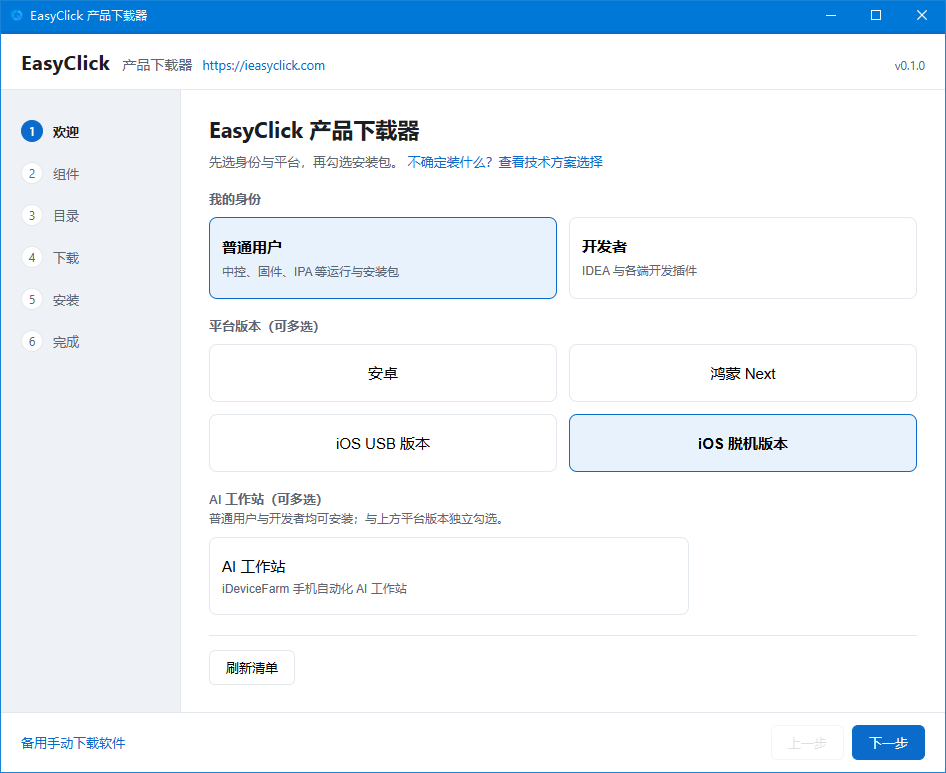
1 Open the product downloader and pick identity / platform
Download and open the EasyClick product downloader:
- On this site: Download the product downloader
- Software downloads: Download area
After it opens:
1. Set My identity to Regular user
2. Under Platform version, check iOS Offline version (this is the Apple cluster wireless edition)
3. Click Next
2 Select required components
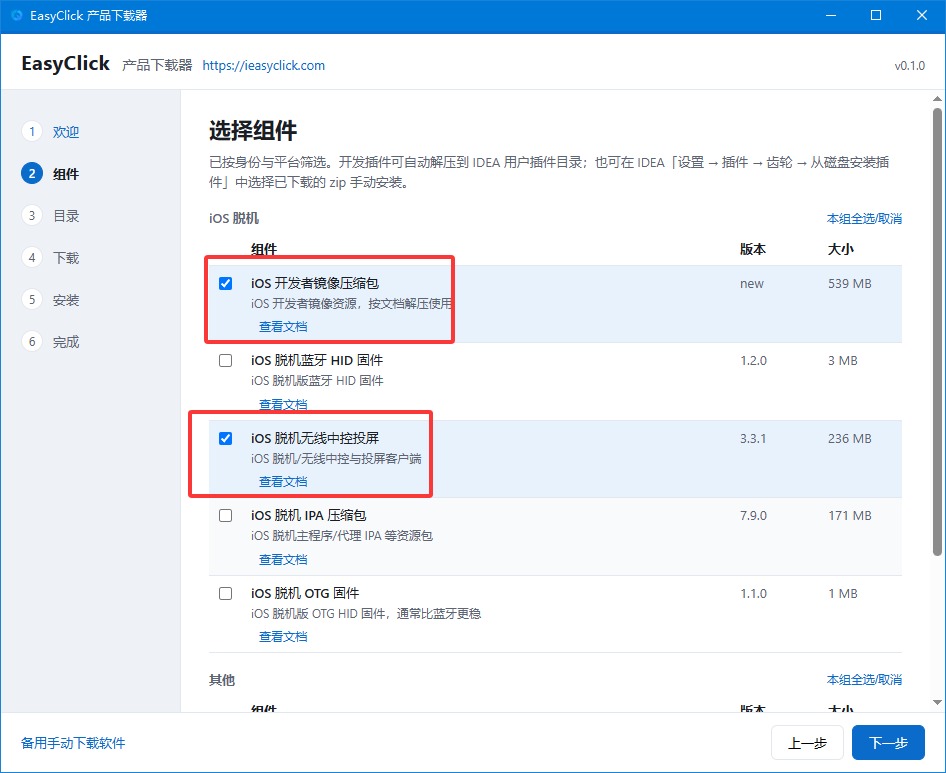
On the Components page, check both required items:
- iOS offline wireless control center & mirroring
- iOS developer disk image (required — download it; needed for USB connect, image mount, and activation)
Then click Next.
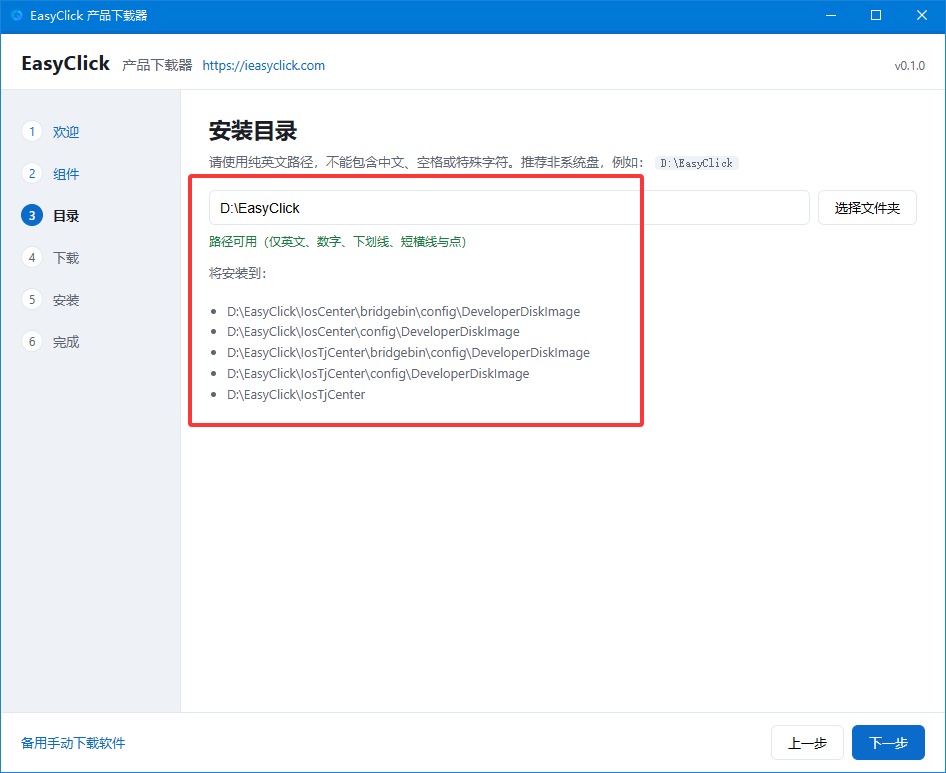
3 Choose the install directory
Prefer a pure English path. The default directory is usually fine — confirm and click Next.
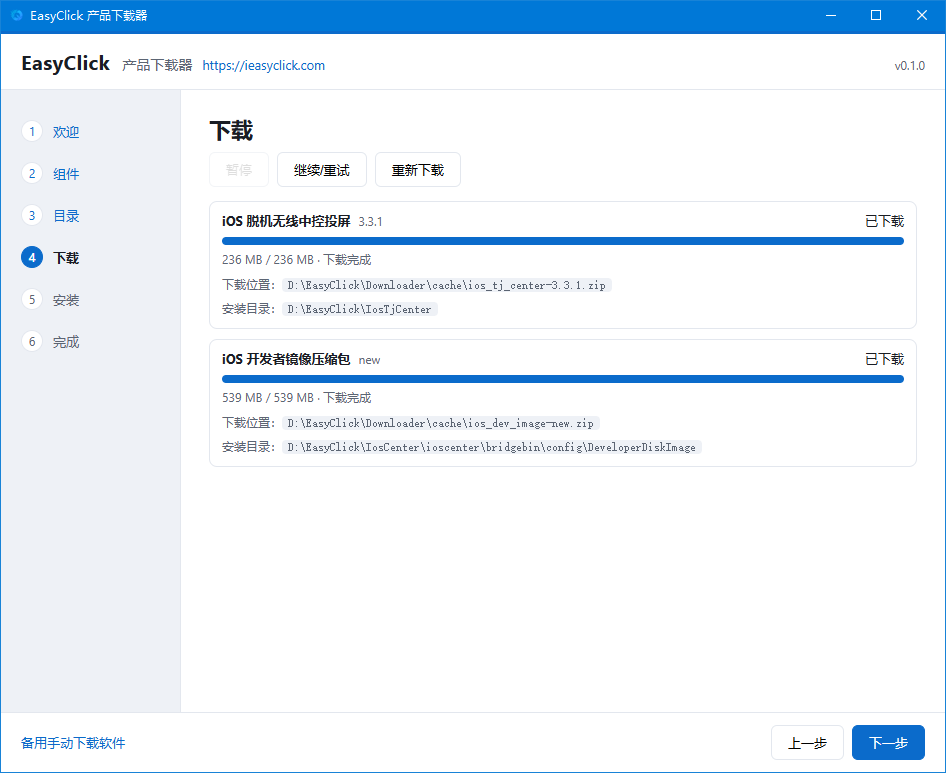
4 Wait for downloads to finish
Wait until the software download completes before continuing.
5 Finish install and open the folder
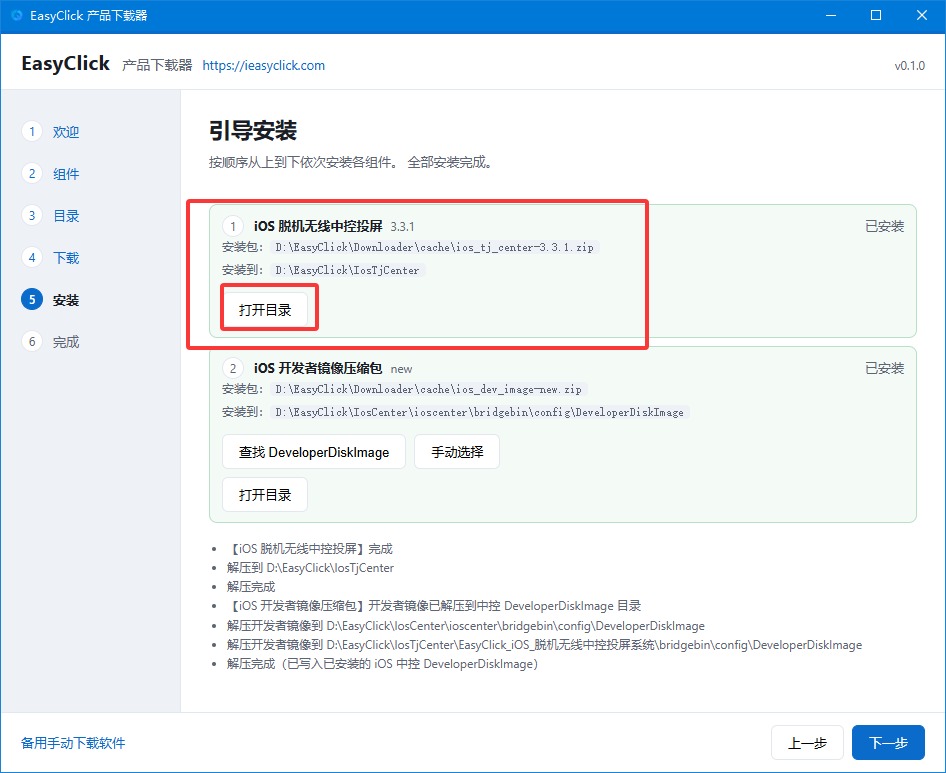
After auto-install and extract, open the iOS offline wireless control center & mirroring folder.
6 Know the control center and mirroring apps
You will mainly use two programs:
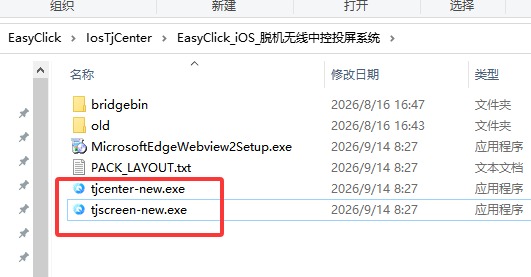
- tjcenter-new.exe: control center for scripts and devices
- tjscreen-new.exe: mirroring client
Open tjcenter first to configure the environment, then launch mirroring from the control center. Next, install the IPA on the phone.
7 Download the offline main IPA
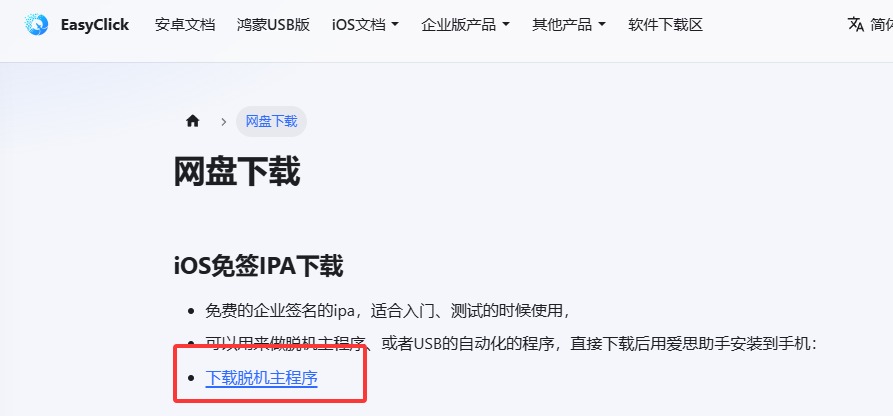
Open the site Download area, then click Download offline main app to get the IPA.
If the browser warns that the file is risky, choose Keep — do not let it delete the IPA.
8 Import and install with i4Tools
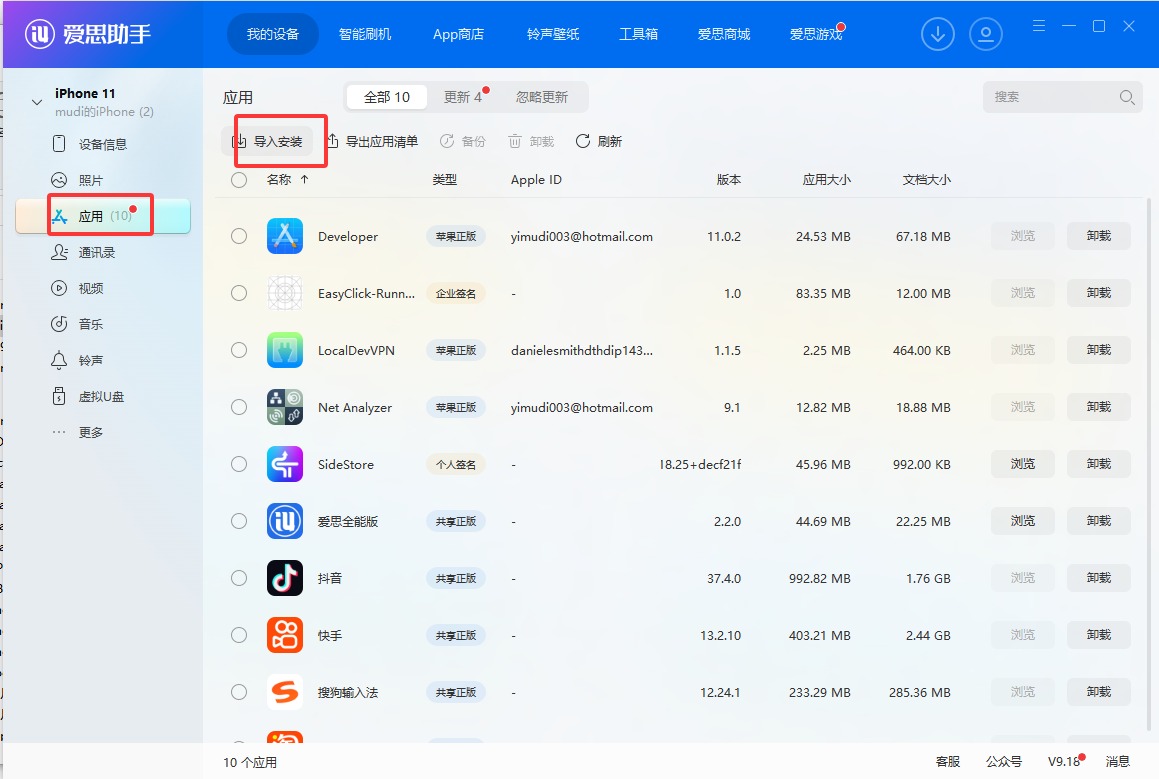
1. Open i4Tools (AiSi) and confirm the phone is detected
2. Open the phone Apps section
3. Click Import install and select the IPA
9 Open the installed app
After install, open 易点云测签名版. The first launch usually shows app verification prompts.
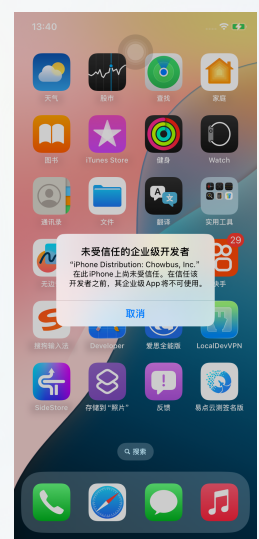
10 Trust the profile in Settings
On the phone go to Settings → General → VPN & Device Management, find the new app / profile, and tap Trust.
On iOS 16+, also turn on Developer Mode. iOS versions below 16 do not have Developer Mode — you do not need to turn it on.
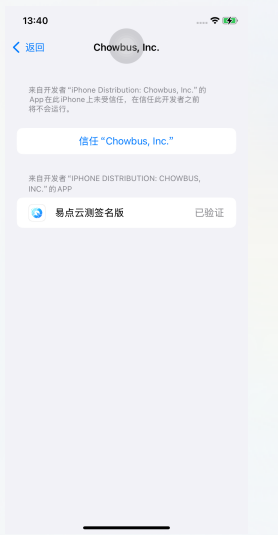
11 Grant permissions and enable keep-alive
Open the app again after trusting. Allow all permission prompts, or finish them under in-app Permission grant.
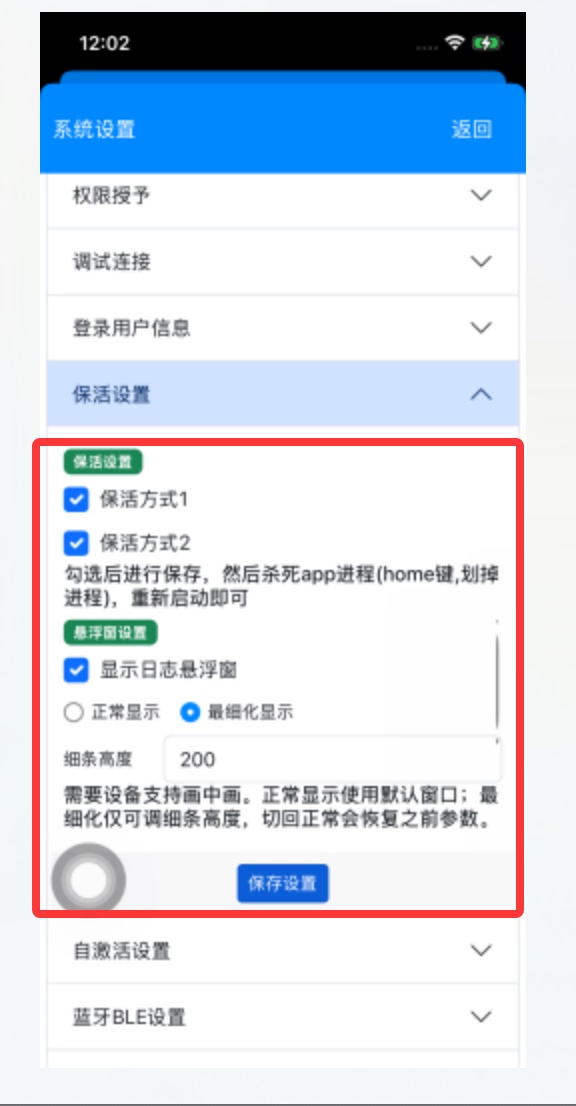
Then open App Settings → Keep-alive, check all options, and Save.
The log floating window must stay on. If it is off, the process may be frozen by the system and automation / keep-alive can fail. If it covers too much of the screen, switch to the finest / most detailed display mode.
12 Bind licenses in the offline activator
Back in tjcenter, open Offline activator. First connect the phone with a USB cable — the device should appear in the list.
Developer disk image check:
1. Make sure the downloader checked and downloaded the iOS developer disk image
2. Plug in the device over USB, then open Offline activator
3. Check the Image column: if it shows Mounted / Flashed (已刷入), the developer disk image was applied successfully
4. After the phone reboots, the image usually clears — you must mount / flash it again
5. Optional check: in the phone app go to Settings → Automation service, choose Single-app mode, and start it. If it starts successfully, the environment is healthy
iOS 15.8: mounting often fails — use i4Tools / AiSi → Live screen once, then try again. iOS 15.8 is poorly compatible; avoid this version if you can.
If the exact version image is missing: under the control-center install dir, open bridgebin\config\DeveloperDiskImage, copy a nearby version folder and rename it (e.g. no 27.0 → copy 26.5 and rename to 27.0), restart the control center and iPhone, reconnect over USB, then check Image on the Offline activator page for Mounted / Flashed.
Buy a license from your reseller or official channel, then add / bind it on the device.
An offline device license is for running scripts. An offline mirroring license is what you need to mirror the phone on the computer and operate it.
After success, continue. If the license is missing, click Refresh license.
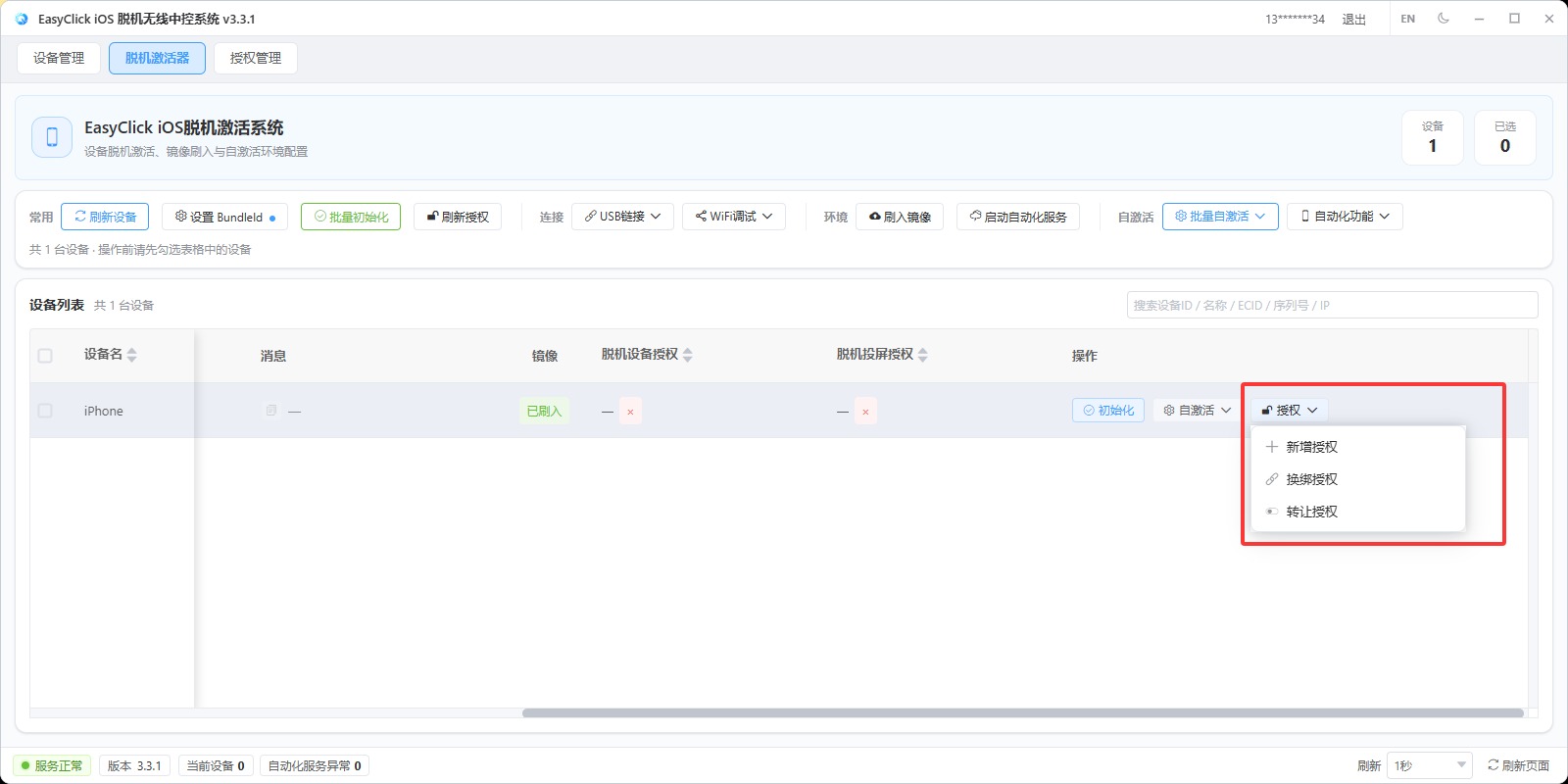
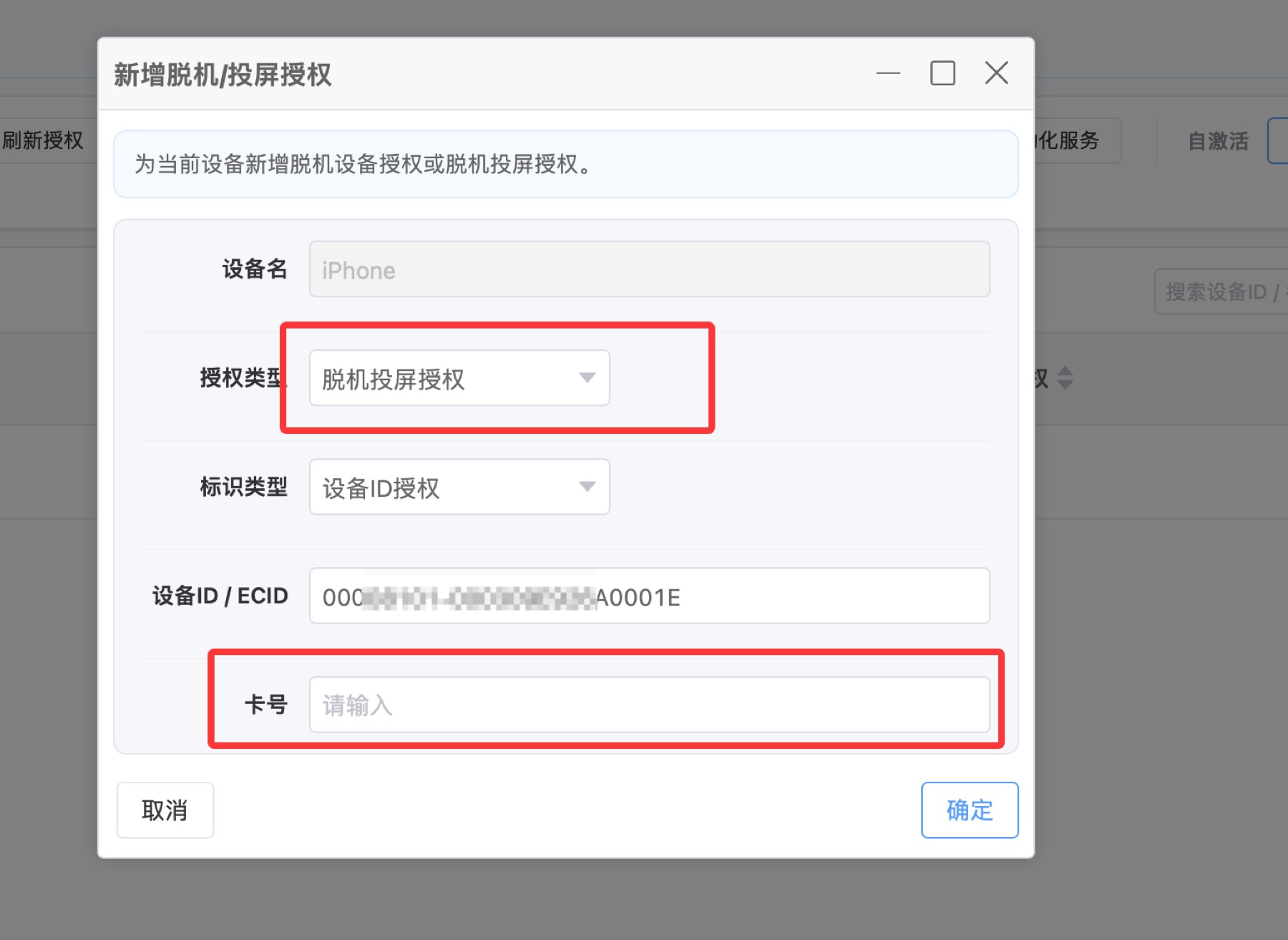
In the dialog, choose Offline mirroring license, enter the card number, and click OK.
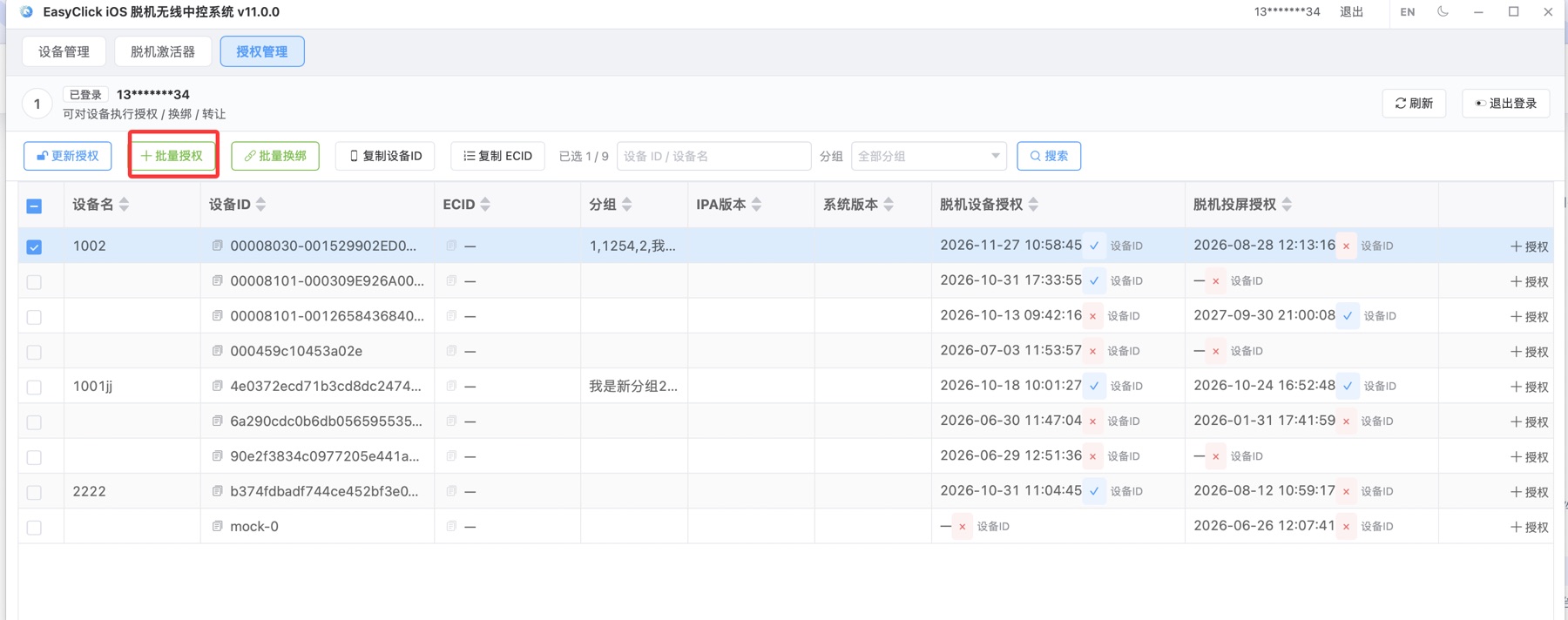
You can also batch-authorize from Authorization in the offline control center: select the devices, then click Batch authorize.
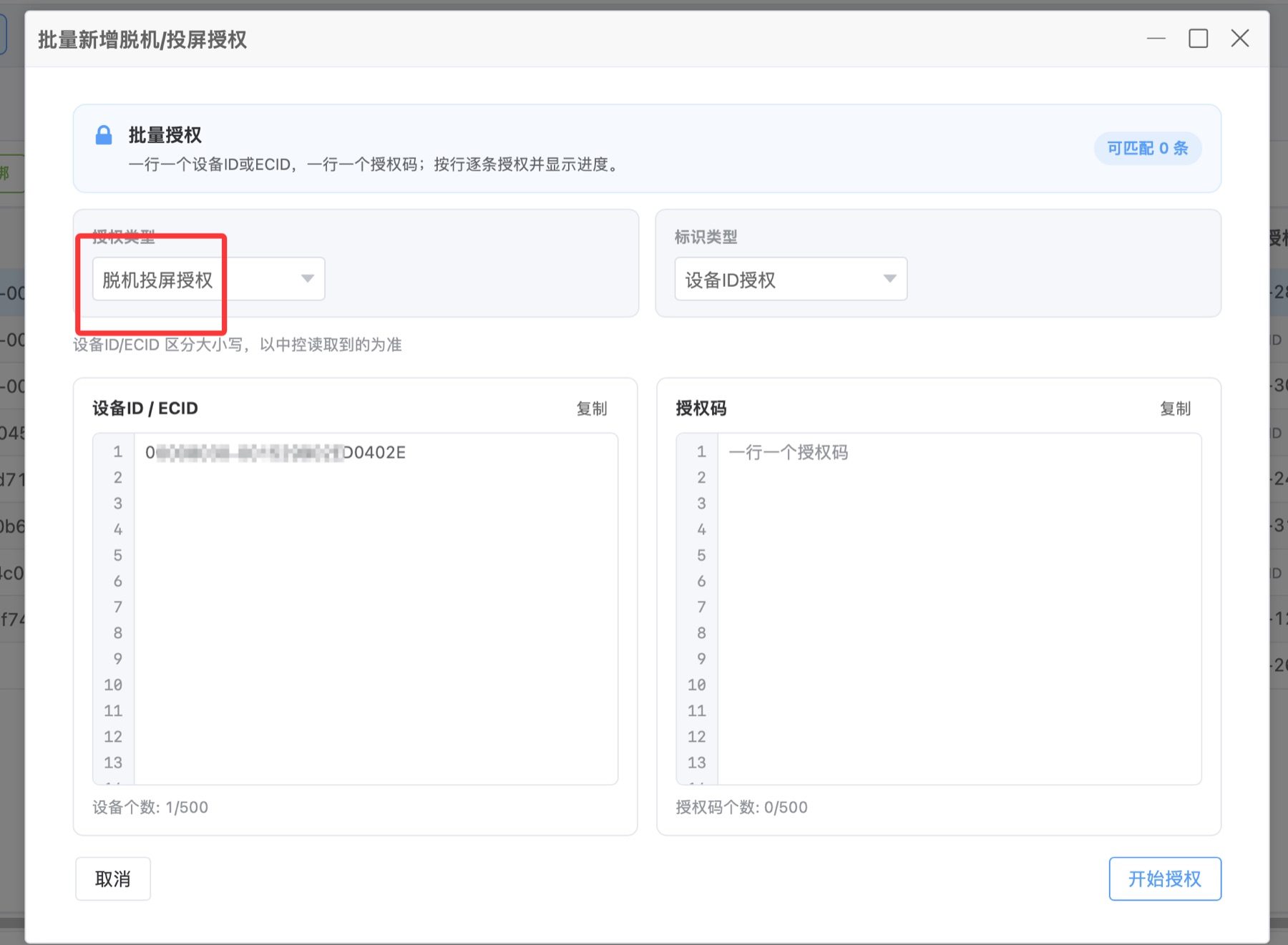
In the dialog, choose Offline mirroring license, then click Start authorization.
13 Fill BundleId and batch initialize
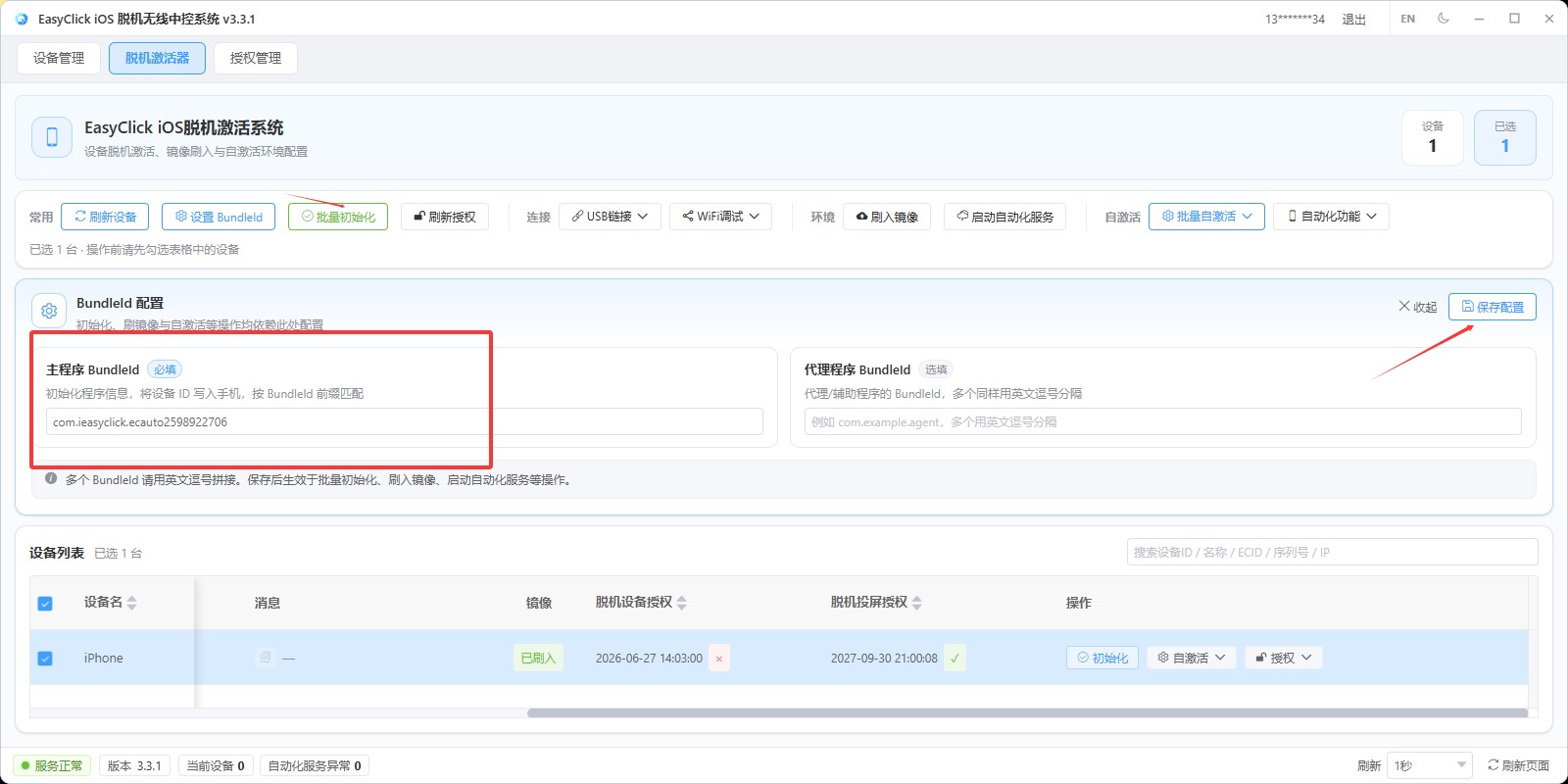
Enter the main app BundleId, save, then click Batch initialize.
Unknown BundleId: in i4Tools Apps, right-click the app → Copy identifier.
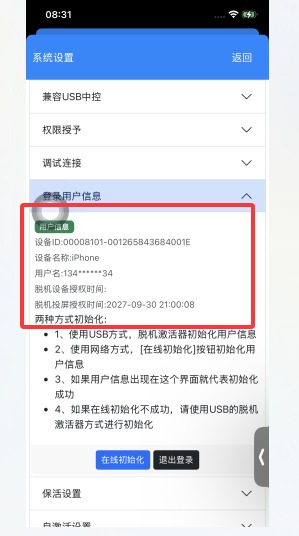
When done, open the phone app Settings → Login info — you should see device ID, username, time, etc.
If initialization fails, restart the iPhone, then quit and reopen the control center and try again.
14 Confirm login info looks correct
Seeing device ID, username, and time in Login info means initialization succeeded.
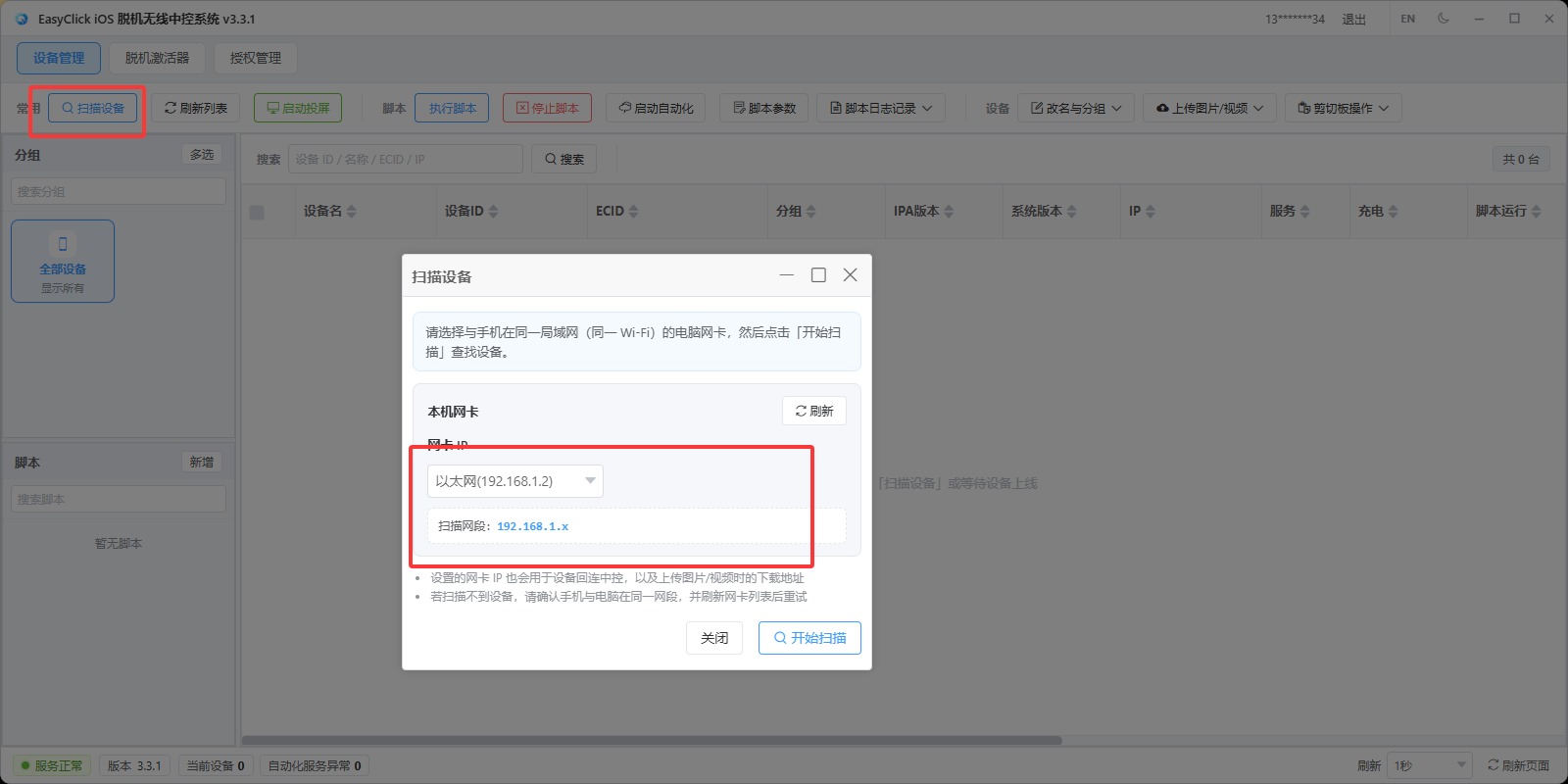
15 Scan LAN devices
In the control center, confirm phone and PC are on the same LAN. Click Scan devices → Start scan.
After scanning, the device should appear connected over Wi‑Fi / LAN.
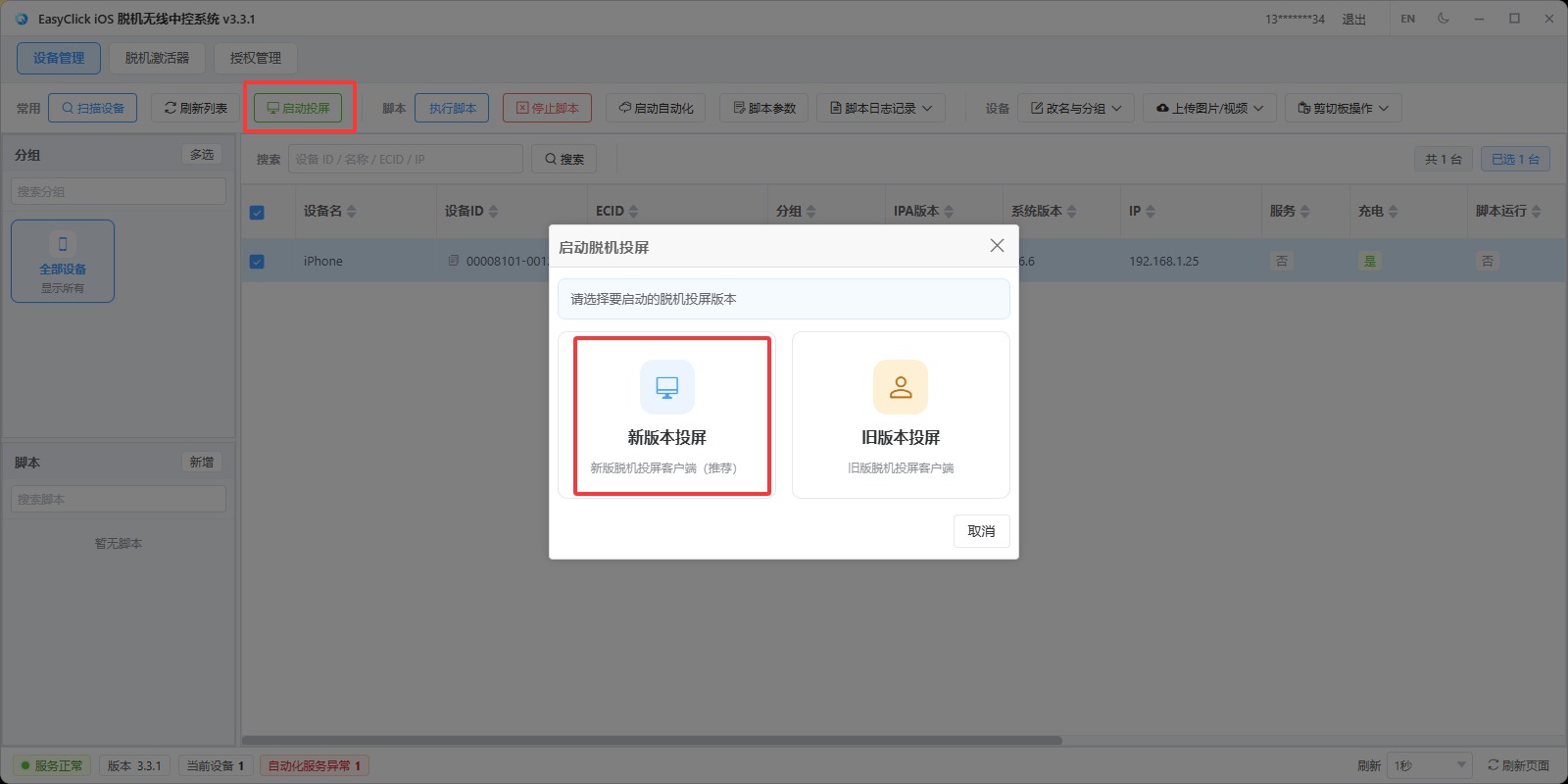
16 Launch mirroring (new version)
In the control center click Start mirroring, choose New version, and open the mirroring UI.
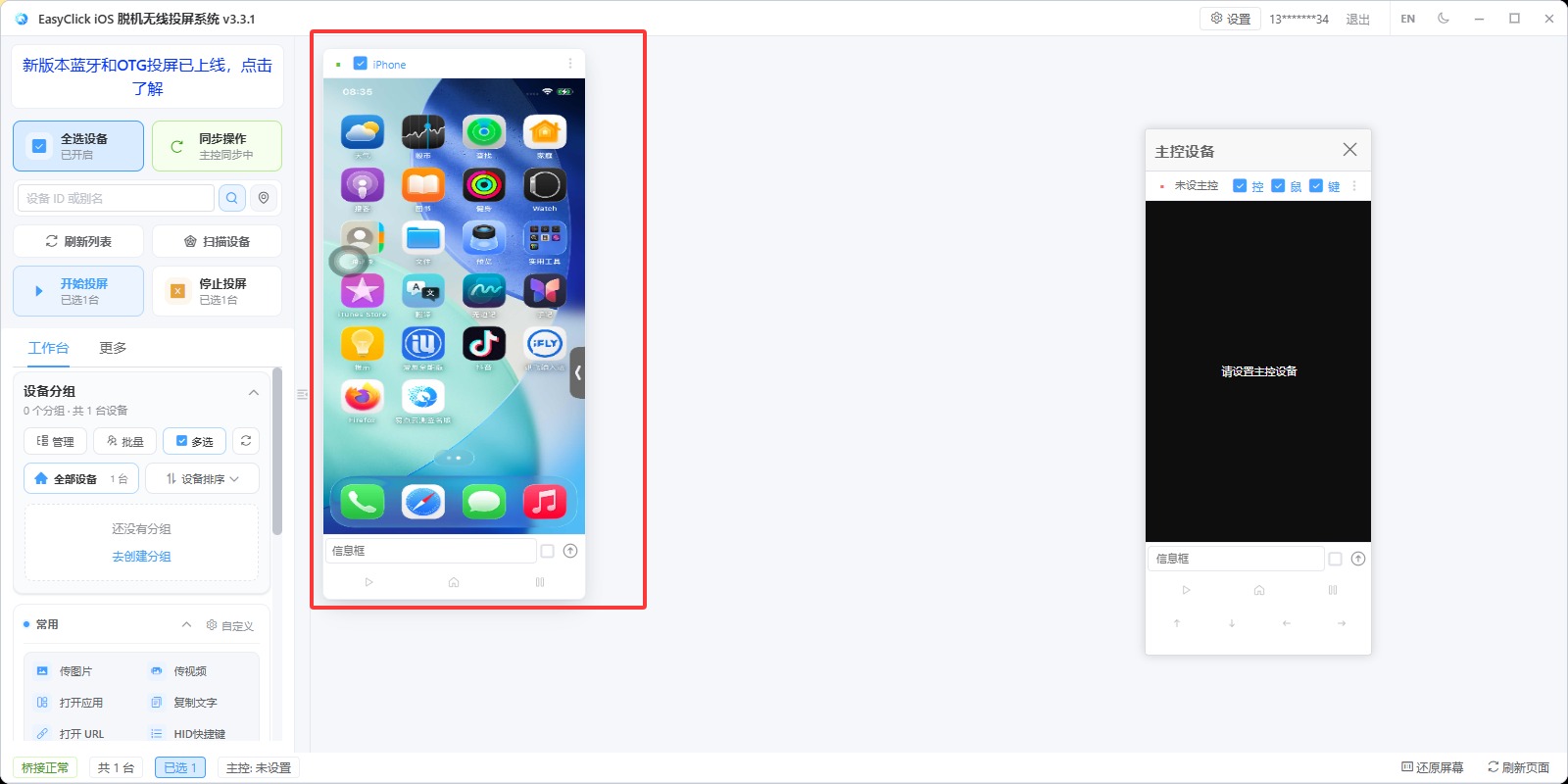
17 Start mirroring and control the screen
Click Start mirroring — you should soon see the phone screen and be able to operate it.
What to do next
- Activation & licenses: Offline activator tutorial
- Control center & mirroring: Offline control center & mirroring
Common pitfalls
- Missed / did not download the developer disk image → activation and automation often fail
- Offline activator Image column is not Mounted / Flashed → reconnect over USB and remount; remount again after every reboot. On iOS 15.8, first use i4Tools / AiSi → Live screen once, then remount; avoid iOS 15.8 if you can
- Exact version image missing → under the control-center install dir, open
bridgebin\config\DeveloperDiskImage, copy a nearby version folder and rename it (e.g. 26.5 → 27.0), restart the control center and iPhone, then remount; check Image on the Offline activator page - Optional: App Settings → Automation service → Single-app mode — if it starts, the environment is usually OK
- Only offline device license, no offline mirroring license → scripts may run but mirroring is limited
- Wrong BundleId → batch initialize fails; copy the identifier from i4Tools
- Phone and PC not on the same subnet → scan finds nothing
- Log floating window off → the process may be frozen; keep it on, or switch to the finest / most detailed display mode if it covers the screen
- Odd failures → confirm the image is mounted first; restart the iPhone only if needed (then remount), and quit/reopen the control center